


Installing packages with Composer
Store your token, add the repository once per project, require packages, install paths for WordPress and Bedrock, and ZIP downloads.
On this page
Before you start
- Your account needs repository access: a plan, or membership of an organisation with one. Settings → Account says whether it is active.
- Create a Composer token.
- Your project's
composer.jsonneedscomposer/installersso that plugins and themes go into the right folders.
1. Store your token for Composer
Once per computer, store the token in Composer's global auth.json:
composer config --global http-basic.composer.meteorgpl.com token <your-token>
The user name is always token; the password is the token itself. The Install menu of every package has the command under Authenticate (1).
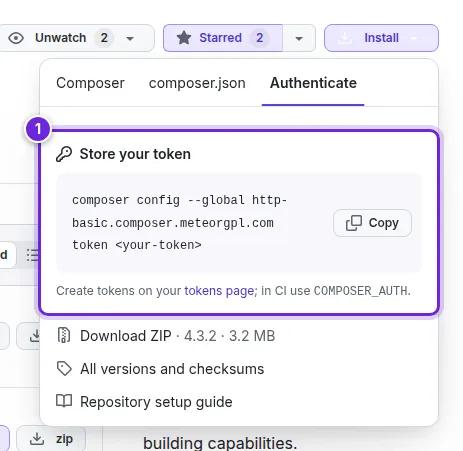
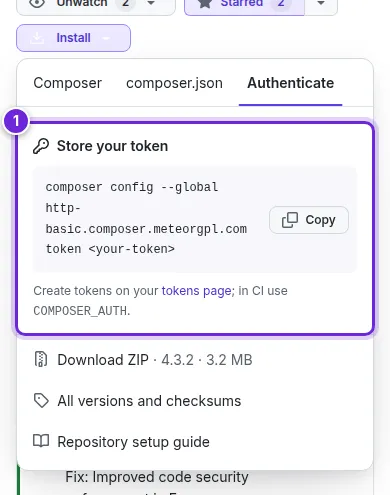
In CI, pass the token through the COMPOSER_AUTH environment variable instead (Composer in CI).
2. Add the repository to the project
Once per project:
composer config repositories.meteorgpl composer https://composer.meteorgpl.com
3. Require a package
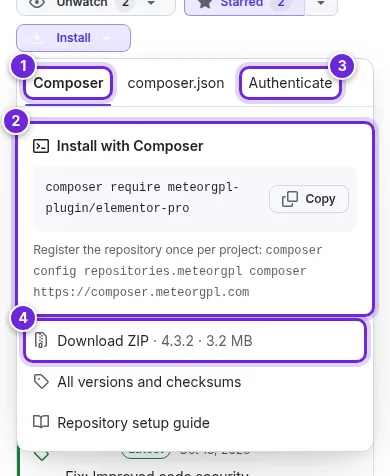
- On the package page, open Install (1).
- The Composer tab (2) has the
composer requirecommand; copy it and run it in your project. - The Authenticate tab (3) has the token command from step 1.
- Download ZIP (4) downloads the latest version as a ZIP file instead.
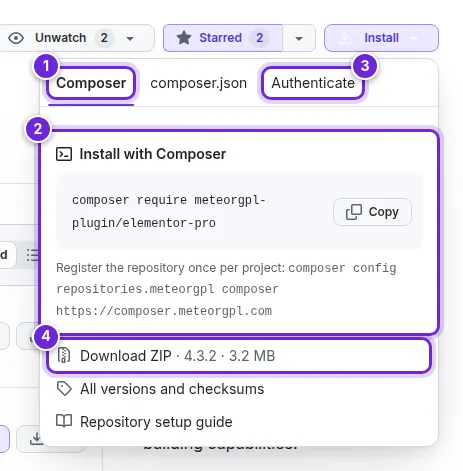
The composer.json tab gives the line to add to require by hand, with a caret constraint on the latest version.
A complete composer.json
{
    "repositories": [
        { "type": "composer", "url": "https://composer.meteorgpl.com" }
    ],
    "require": {
        "composer/installers": "^2.0",
        "meteorgpl-plugin/elementor-pro": "^3.21"
    },
    "extra": {
        "installer-paths": {
            "wp-content/plugins/{$name}/": ["type:wordpress-plugin"],
            "wp-content/themes/{$name}/": ["type:wordpress-theme"]
        }
    }
}
Plugins are named meteorgpl-plugin/<slug>, themes meteorgpl-theme/<slug>.
In Bedrock, the paths are web/app/plugins/{$name}/ and web/app/themes/{$name}/ (Bedrock's own composer.json has them already).
Versions
Every published version stays available, so installs from composer.lock are reproducible. Use caret constraints (^3.21) to receive minor updates with composer update, or require an exact version: composer require meteorgpl-plugin/elementor-pro:3.21.2. The Versions tab lists them all, with the SHA-256 of each ZIP (Reading a package page).
A child theme needs its parent theme installed too: the package page names the parent and links to it when it is in the repository.
ZIP downloads
Without Composer, download a version from the website: Download ZIP in the Install menu for the latest one, or zip next to any version on the Versions tab. Upload the ZIP in WordPress under Plugins → Add New → Upload Plugin (or Appearance → Themes → Add New → Upload Theme). Downloads count towards your download history like Composer downloads.
Troubleshooting
401 Unauthorized: the token is wrong, revoked or expired. Check it under Settings → Composer tokens and store it again.
403 Forbidden: the token is valid but your account has no repository access (no plan), or the token is limited to networks that do not include the machine running Composer.
Package not found: check the Composer name on the package page and that the repository entry is in the project's composer.json. A token limited to certain packages does not see the others either.
Too many failed authentication attempts (429): wait a few minutes, then try again with the right token.
Did this not answer your question? Contact support.