


Projects: is every site up to date?
Share a site's composer.lock and see which plugins and themes are behind, withdrawn or taken down — by hand or from CI.
A project stands for one site or codebase. It reads the site's composer.lock and compares each MeteorGPL package in it with the repository.
Before you start
You need the project's composer.lock (it is next to composer.json), or a CI pipeline that can send it. Projects of a team live in the organisation: your organisation → Projects, same pages.
Create a project
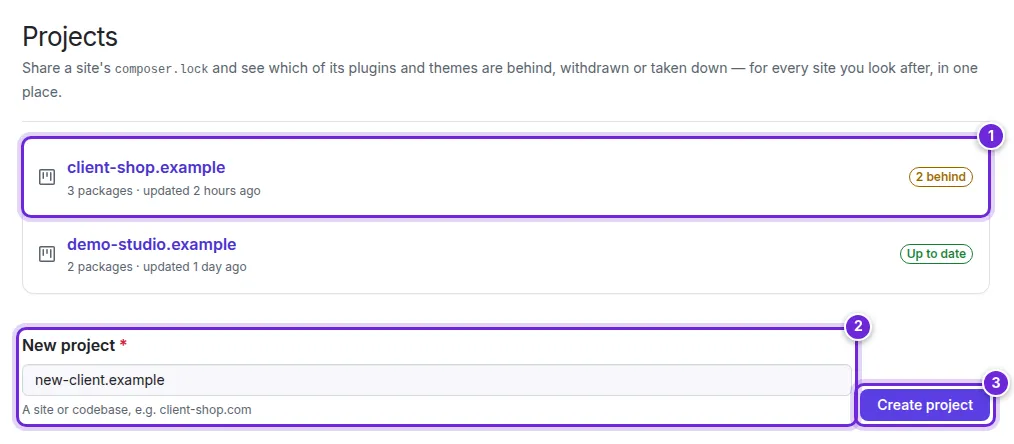
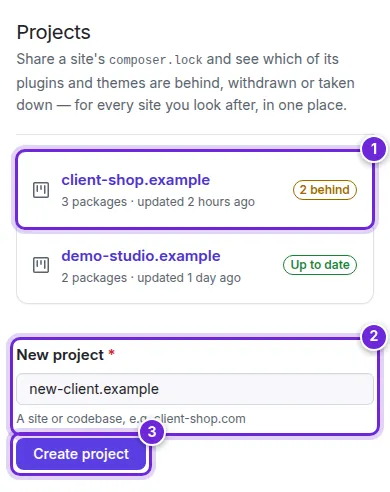
- Open Settings → Projects.
- The list (1) shows each project with the number of packages it uses and how many are behind.
- Enter a name under New project (2), for example the site's domain.
- Select Create project (3).
Read a project
Open a project from the list.
- The tiles (1) count the packages that are Up to date, Behind, run a Withdrawn version or were Taken down.
- Each row (2) shows the installed version, the latest version with its date, and the status; n versions behind links to the changelog entries you are missing.
- The Update column (3) has the
composer requirecommand that brings the package up to date. - Upload composer.lock (4): choose the file, or paste its contents, then Update.
- From CI (5): the command your pipeline runs after
composer install, with this project's address.


Only MeteorGPL packages are compared; the page says how many other packages the lock file contains.
From CI
curl -fsS -u token:$METEORGPL_TOKEN -F lock_file=@composer.lock https://meteorgpl.com/api/projects/<project-id>/lock
Use a Composer token of the project's owner: your own for a personal project, an organisation token for an organisation's project. See Composer in CI.
Watch the project's packages
At the bottom of a personal project, tick Watch new versions of these packages and select Save: you then watch every package in the lock file at the Releases level (Stars, lists and watching). Remove project deletes it.
Did this not answer your question? Contact support.