


Stars, lists and watching
Star packages into lists to find them again and turn a list into a composer.json, star the versions you rely on, and watch packages to hear about new versions, security notices and withdrawals.
On this page
Before you start
You need to be signed in. Stars, lists and watching are free.
Star a package
On a package page, select Star (1) next to Watch. The package goes into your list Favorites, and a notice at the bottom of the window says which list it went to, with Change to pick another one. The button turns into Starred; selecting it again removes the package from all your lists, and the notice offers Undo.
Once you add a package to a list yourself, Star saves to that list until you choose another one: it is marked Star saves here (3).
Starring also watches the package's new versions unless you turned that off under Settings → Notifications (Automatically watch packages you star).
Lists
The arrow next to Star (2) opens your lists. Tick a list to add the package to it, untick it to take the package out; a package can be in several lists. Create list (4) makes a new list with the package in it. Manage your lists (5) opens Settings → Lists.
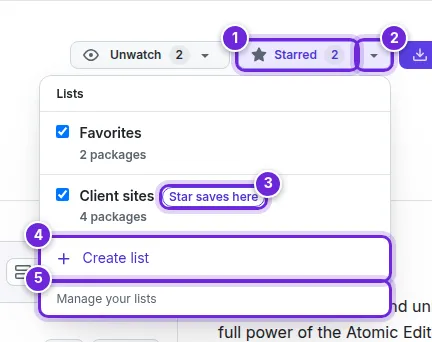

An account has Favorites and up to 49 lists of its own, 50 in all. Lists are private: nobody else sees them, and star counts on package pages are totals.
Your lists
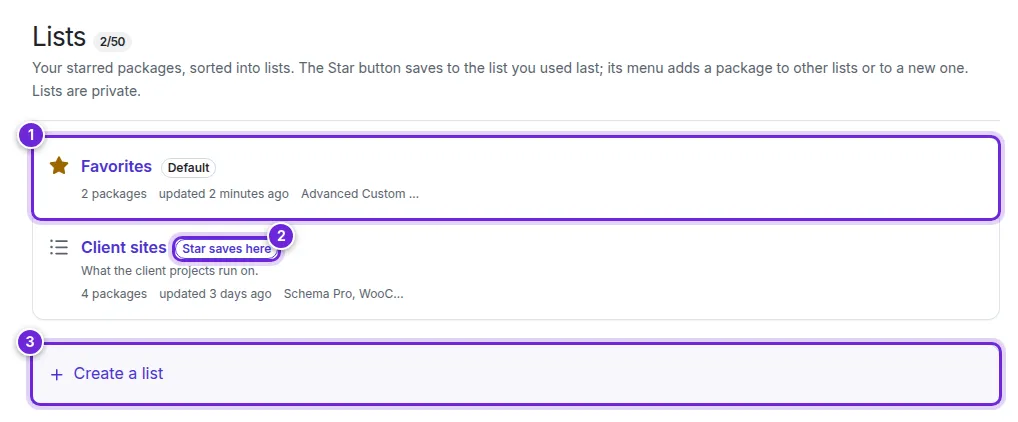
Settings → Lists shows Favorites (1) and your other lists, with the number of packages and the newest ones. Star saves here (2) marks where the next star goes. Create a list (3) adds an empty list.

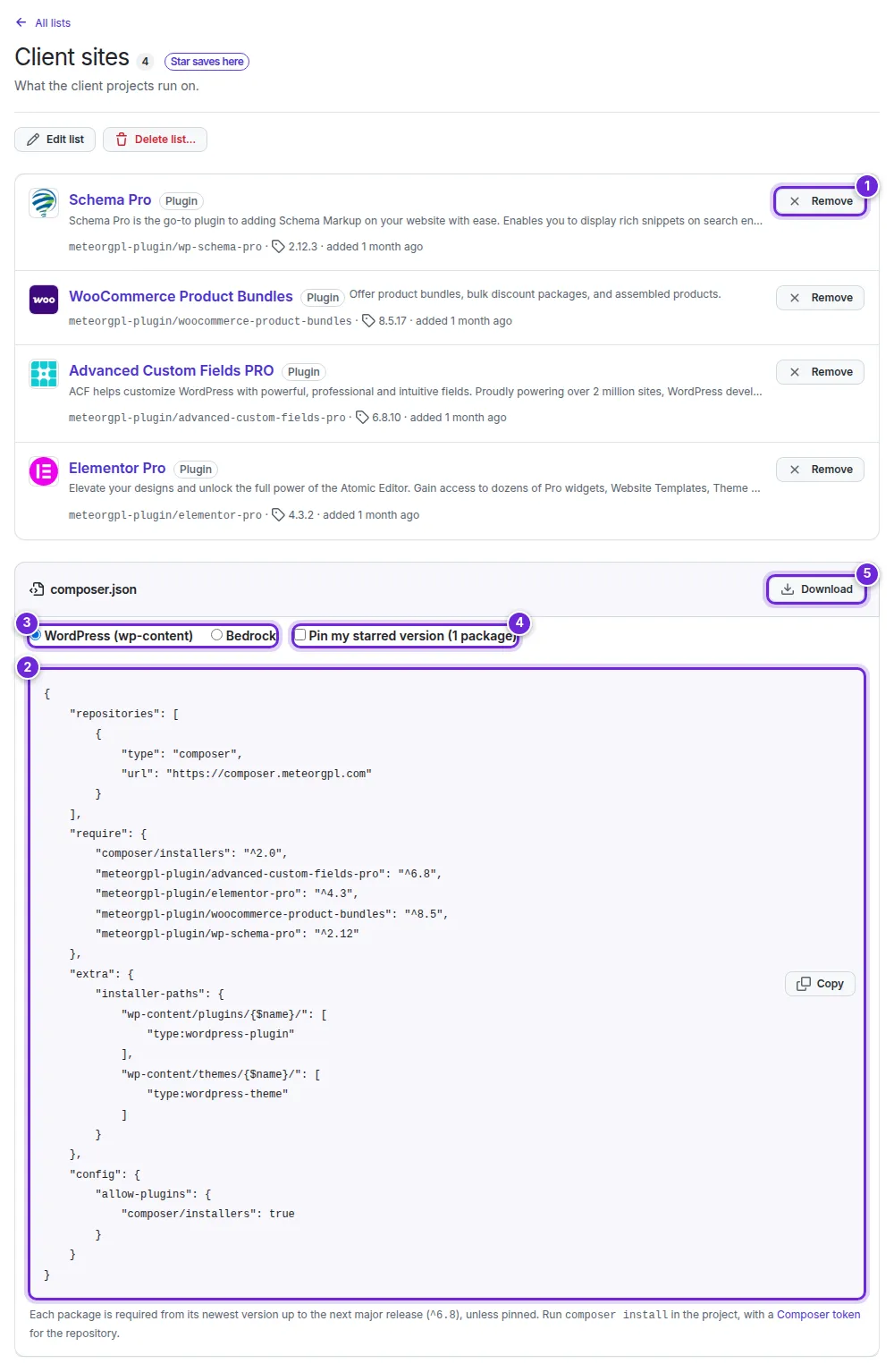
Open a list to see its packages. Remove (1) takes a package out of the list; when it is in no other list, it is no longer starred. Edit list renames the list or changes its description. Delete list… removes it: its packages stay starred, and those in no other list move to Favorites. Favorites itself cannot be renamed or deleted.
Once a week you can get a digest of what changed in your starred packages: turn on Weekly digest in the notification settings.
A list as composer.json
Under its packages, every list shows a composer.json (2) that adds the repository and requires each package from its newest version up to the next major release (for example ^6.8).
- Choose WordPress (wp-content) or Bedrock (3). For WordPress, the file also tells Composer to install plugins and themes into
wp-content; Bedrock does that itself. - If you starred versions of these packages, Pin my starred versions (4) requires those exact versions instead.
- Copy the file or select Download (5), then run
composer installwith a Composer token.

Starred versions
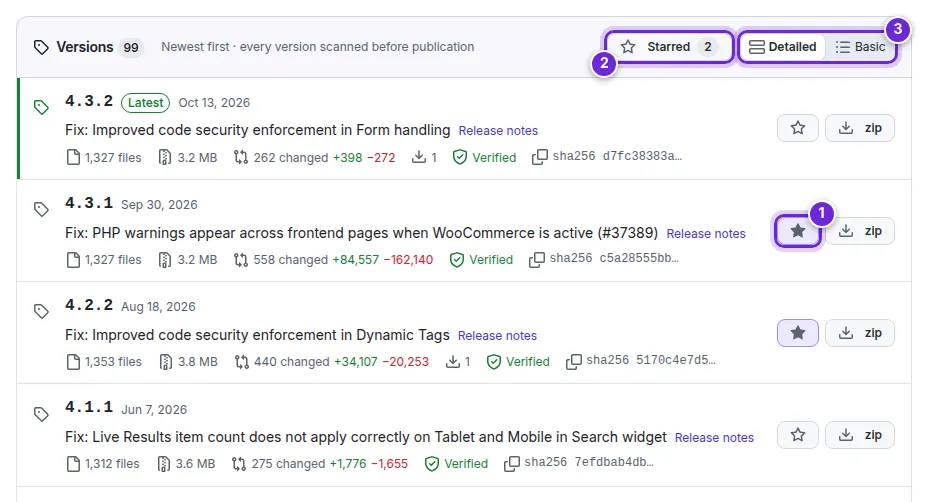
In a package's version list, the star at the end of a row (1) stars that version. Starred (2) shows only the versions you starred; select it again to see them all. Detailed and Basic (3) switch between the full rows and one line per version; your choice is kept for every package page.

Watch a package
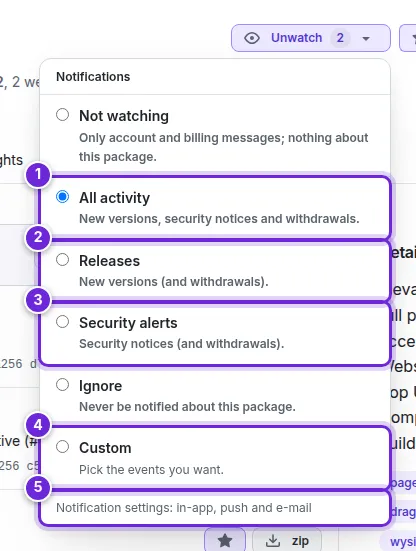
On a package page, open Watch and choose what you want to hear about:
- All activity (1): new versions, security notices and withdrawals.
- Releases (2): new versions (and withdrawals).
- Security alerts (3): security notices (and withdrawals).
- Custom (4): pick the events yourself, then Apply.
Not watching gives only account and billing messages; Ignore silences the package completely. How you hear it (inbox, push or e-mail) follows your notification settings (5) (Notifications).

Packages you watch
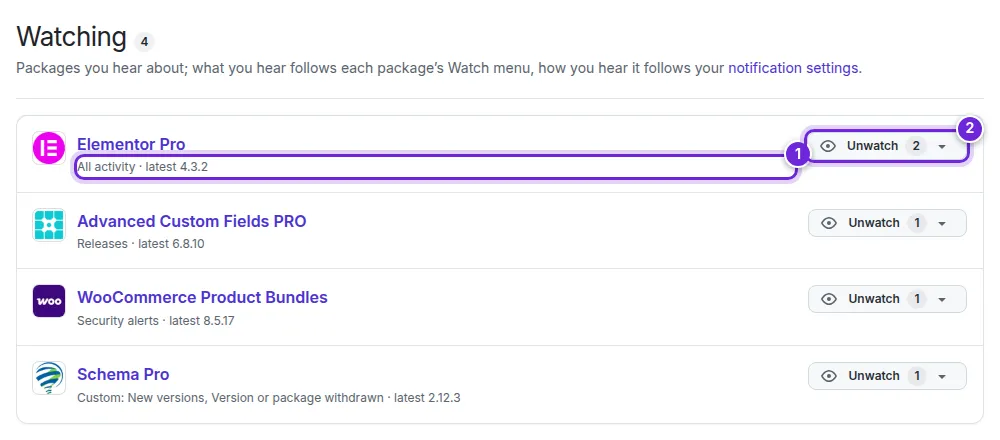
Settings → Watching lists what you watch and at which level (1). Change the level with each package's Watch menu (2).

A project can also watch the packages in its composer.lock for you.
Did this not answer your question? Contact support.