


Password, two-factor authentication and passkeys
Change your password, turn on two-factor authentication, keep recovery codes, add passkeys and sign out after inactivity.
On this page
Everything here is under Settings → Password and authentication. Some changes ask for your password again first; you are then not asked again for a few hours.
Two-factor authentication is required
Every account must use two-factor authentication: an authenticator app or a passkey, either one is enough. A new account has 14 days to turn it on.
- Until you do, a reminder at the top of every page (1) says from which date it becomes required.
- Turn it on now (2) opens Settings → Password and authentication.


After the date, Settings → Password and authentication is the only page that opens, with a red notice, until you set up an authenticator app or add a passkey; then the rest of the site opens again at once. Your Composer tokens keep working in the meantime.
Your sign-in methods
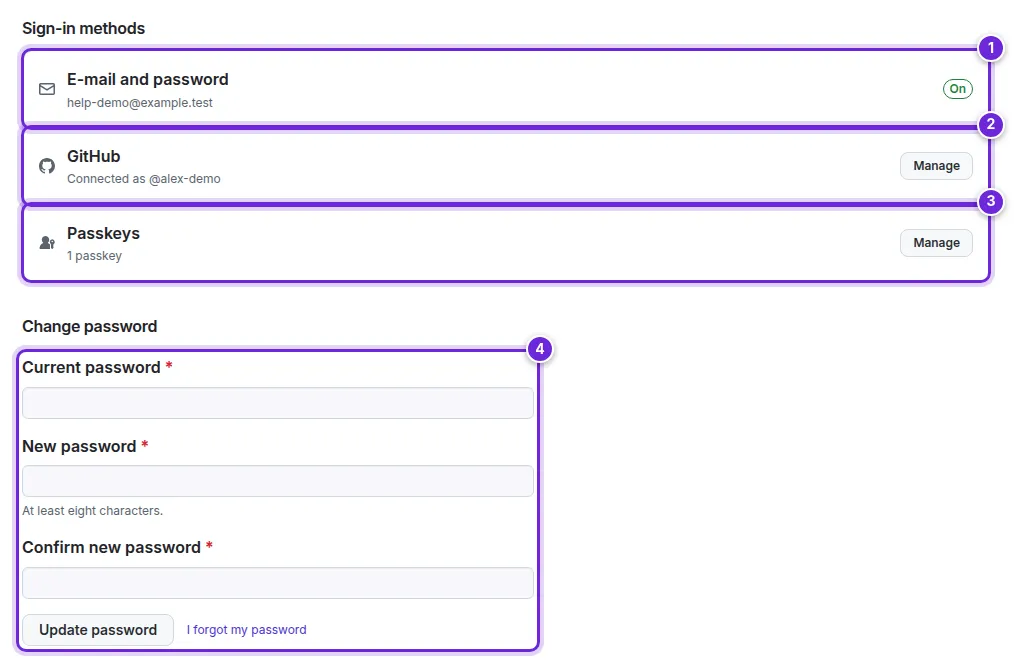
The top of the page lists how you can sign in: E-mail and password (1), a connected GitHub or Google account (2) (Connected accounts) and your Passkeys (3).
To change your password (4): enter the current one, the new one twice (at least eight characters) and select Update password. Changing the password signs out your other sessions. An account created with GitHub has no password until you set one here.

Turn on two-factor authentication
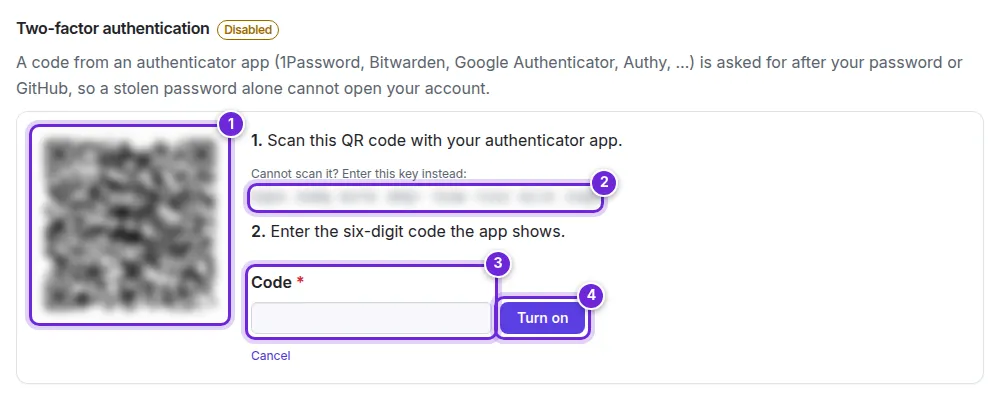
With two-factor authentication, signing in asks for a six-digit code from an authenticator app (1Password, Bitwarden, Google Authenticator, Authy …) after your password or GitHub/Google, so a stolen password alone cannot open your account.
- Under Two-factor authentication, select Enable two-factor authentication.
- Scan the QR code (1) with your authenticator app, or type the key under it (2).
- Enter the six-digit Code (3) the app shows.
- Select Turn on (4).

Save your recovery codes
Right after turning it on, the page shows eight recovery codes (1), once. Each signs you in once when your phone is not at hand. Download (2) them as a text file or Copy (3) them into your password manager.


When two-factor authentication is on
The section says Enabled (1). Authenticator app (2) shows since when, with Turn off. Recovery codes (3) says how many are left; Regenerate replaces them all with eight new ones (the old ones stop working).


Signing in with two-factor authentication
After your password, enter the Authentication code (1) from the app and select Verify. No phone? Choose Use a recovery code instead (2). Lost both? Choose Lost your authenticator and your recovery codes? (3) (Forgotten password or lost authenticator).


Passkeys
A passkey lets you sign in with your fingerprint, face or device PIN instead of a password. It cannot be phished, and it counts as two factors on its own.
- Under Passkeys, select Add a passkey (2).
- Follow the prompt of your browser or device, then give the passkey a name (for example MacBook or Phone).
- Your passkeys (1) are listed with when they were added and last used; Rename or Remove them there.


To sign in with a passkey, use the passkey button on the sign-in page, or pick the passkey your browser offers in the e-mail field.
Sign me out after inactivity
On a shared computer, choose after how long without activity you are signed out (1): one hour, eight hours, a day, a week or 30 days, or never (until the session expires). Select Save.


Questions
I changed phones. Turn two-factor authentication off and on again with the new phone, or move the entries with your authenticator app's own transfer feature.
Why is it required? Your account holds Composer tokens that install code on your sites. Two-factor authentication or a passkey protects it even if your password leaks.
Did this not answer your question? Contact support.