


Your account and settings
The menu behind your picture, the settings pages and what each group contains, and your profile.
Open the menu
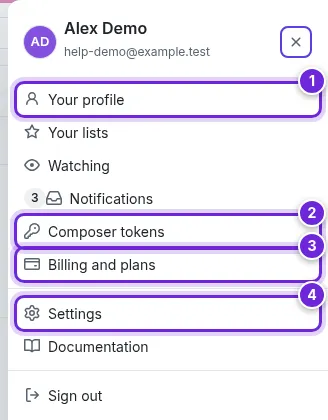
Select your picture (or your initials) at the top right of any page. The menu that opens leads to your profile (1), your Composer tokens (2), billing (3) and Settings (4), where everything else is. Sign out is at the bottom.

The settings pages
The picture at the top right (1) opens the menu; the menu on the left of the settings (2) lists every page; the page itself opens on the right (3).
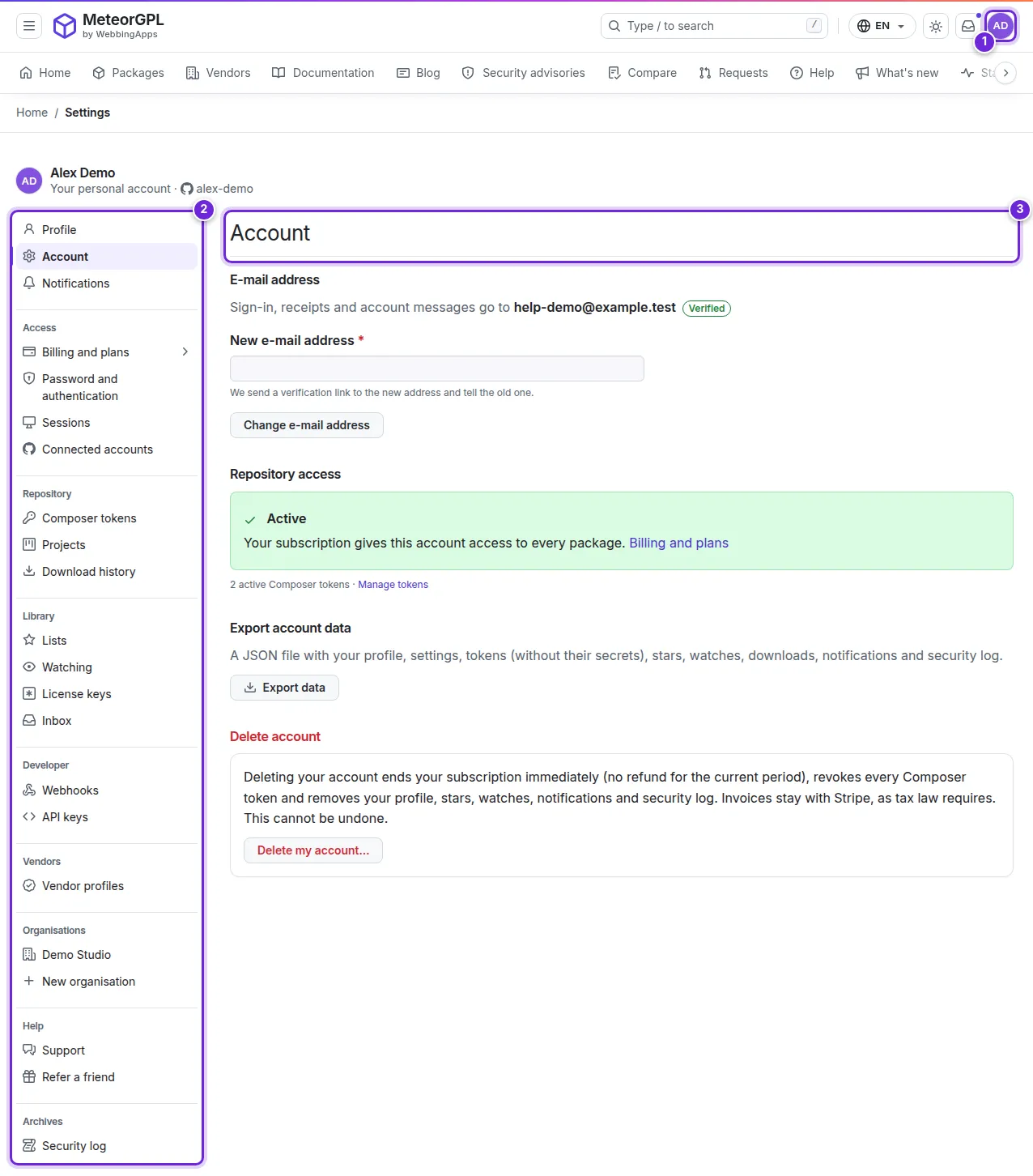

| Group | Pages | Help |
|---|---|---|
| (top) | Profile, Account, Notifications | below; Changing your e-mail, language, or deleting your account; Notifications |
| Access | Billing and plans, Password and authentication, Sessions, Connected accounts | Billing; Two-factor authentication; Sessions |
| Repository | Composer tokens, Projects, Download history | Composer tokens; Projects |
| Library | Lists, Watching, License keys, Inbox | Stars, lists and watching; License key vault |
| Developer | Webhooks, API keys | Webhooks; API keys |
| Vendors | Vendor profiles | Claiming your vendor profile |
| Organisations | your organisations, New organisation | Organisations |
| Help | Support, Refer a friend | Support; Referrals |
| Archives | Security log | Security log |
On a phone, the settings menu is above the page: scroll up to switch pages.
Your profile
Settings → Profile holds what you gave when you signed up. Nothing here is public.
- Change your Name (1), country, role, company, birthday or phone.
- Choose a Time zone (2): dates in e-mails and the weekly digest use it. Detect automatically takes the one of your browser.
- Choose a Language (3) for the website, e-mails and Stripe receipts.
- Select Update profile (4).
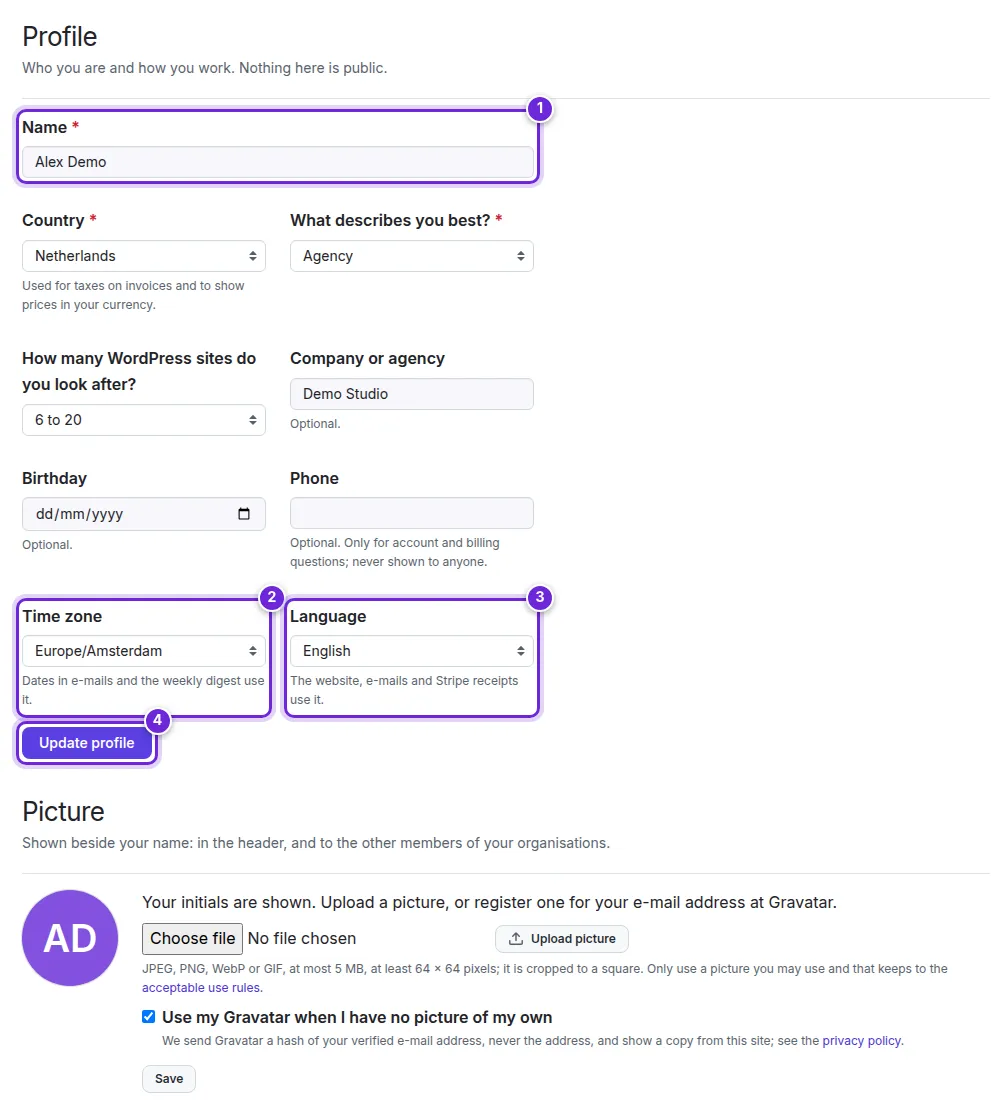

Under Picture you can upload a picture of your own (up to 5 MB) or remove it. Without one, the site shows the picture of the GitHub or Google account you signed in with, then the Gravatar of your e-mail address (you can switch that off there), and otherwise your initials. A picture must keep to the acceptable use rules.
Download history
Settings → Download history lists every package version fetched with your Composer tokens or from the website, with the token it went through (1). Use it to check what a server installed, or to spot a token used where it should not be.


Did this not answer your question? Contact support.